A Snagit alternative you buy once
Short answer. Snapik is a screenshot tool for Windows and Mac that costs €19 once, while Snagit is now sold only as a yearly subscription (€39.56 a year for Snagit Individual in TechSmith's store on 8 November 2026). Snapik isn't free. You get 7 days with every feature and without a card or account, then pay once and keep it with free updates. It's made for marking several screenshots with numbered notes and pasting them into an AI chat or a teammate's chat as one message.
If the yearly bill is why you want a Snagit alternative, every Snagit fact below links to TechSmith's own store or support pages, checked on 8 November 2026.
Snagit is annual-only now
Since Snagit 2025, TechSmith sells Snagit only as a subscription, and the only payment plan is annual (TechSmith support, subscription FAQ, updated 22 October 2026, checked 8 November 2026). There is no monthly plan.
If you stop paying, the subscription version stops working (same FAQ).
A subscription can be installed on any number of machines, but you can sign in on or activate only one device at a time (same FAQ).
How much Snagit costs in 2026
TechSmith's store lists Snagit Individual at €39.56 per user per year, billed yearly (TechSmith store, checked 8 November 2026).
Before you pay, Snagit gives a fully functional 15-day trial, and the trial can be reset once for another 15 days (TechSmith support, trial reset, updated 14 May 2026, checked 8 November 2026).
Snapik costs €19 once, VAT included. That is less than half of one year of Snagit Individual. At the current price, three years of Snagit come to €118.68, and Snapik is still €19 with every update included. For taking screenshots and writing notes on them, a yearly bill is hard to justify.
Is there a free Snagit alternative?
Snapik is not free. After the 7-day trial you pay €19 once. The free tool built into Windows is Snipping Tool (Win+Shift+S), and the Snipping Tool comparison shows where Snapik differs from it.
The €19 buys a personal licence that never expires, free updates, use on two computers (Windows and Mac in any mix) and a refund within 14 days with no reason needed. If the trial ends and you don't buy, Snapik stops taking new screenshots; the ones already in the strip stay there.
Snapik vs Snagit at a glance
| Snagit (checked 8 November 2026) | Snapik | |
|---|---|---|
| Paying | €39.56 per user per year, billed yearly, annual plan only | €19 once, VAT included |
| If you stop paying | The subscription version stops working | No further payments. The licence does not expire |
| Trial | 15 days, fully functional, one reset for 15 more | 7 days, every feature, no card or account |
| Two computers | Install on any number, sign in or activate one at a time | One purchase covers two computers, Windows and Mac in any mix |
| Systems | Windows 10 and 11, macOS 14 or later | Windows 10 and 11 (x64), macOS 14 Sonoma or later (Apple Silicon and Intel) |
| Refund | 14-day money-back guarantee | 14 days, no reason needed |
| Cloud | Screencast hosting for up to 25 videos, included with all plans | No cloud, screenshots stay on your computer until you paste them |
The Snagit price, systems, refund and Screencast rows come from the TechSmith store. The payment plan and device rows come from the subscription FAQ, and the trial row from the trial reset article.
Several screenshots in one message
Snapik is for showing an AI agent or a teammate what to change in a UI. Each box you draw on a screenshot gets its own note, and all the screenshots go into the chat with one Ctrl+V.
- Press Ctrl+Alt+S (the default; you can set Print Screen or another key in Settings → Hotkeys). The screen freezes. Drag over the area you need.
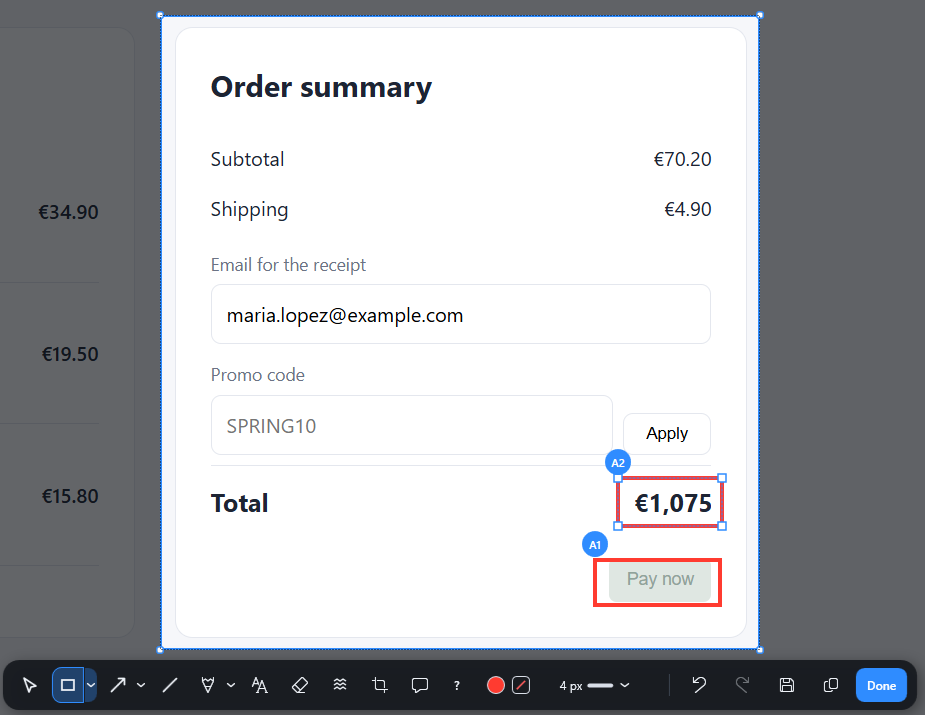
- The Region tool is already active. Draw a box around the button, type your note in the field that opens next to it and press Enter. The box gets the label A1, where A is the screenshot and 1 is the mark on it.
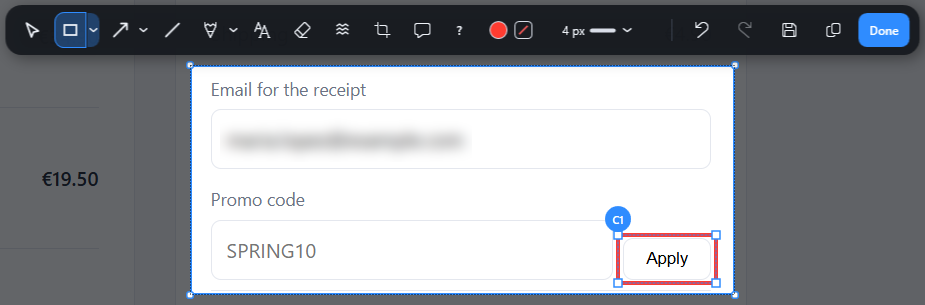
- Box the next spot if you need one (A2, A3). Press A for an arrow or H for the highlighter. To hide an email or a card number, press B and drag over it; to cut the edges, press C.
- Click Done, or press Ctrl+C while the cursor is outside a note. The screenshot moves to the strip at the edge of the screen.
- Take the next screenshot the same way. The strip holds up to 26 and warns after 20 captures.
- Open the chat (Claude, ChatGPT, Codex, Telegram) and press Ctrl+V. Snapik pastes the images one by one, then the notes as text. In a terminal running Claude Code on Windows, press Alt+V instead.
Steps 2 and 3 in the editor:
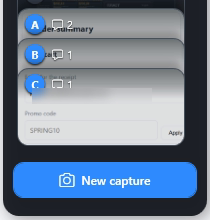
The strip after three captures:
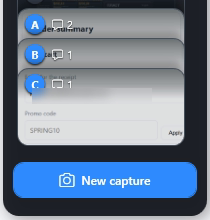
Snapik never presses Enter. You read the message and send it yourself. The notes arrive as plain text in this shape:
Capture A.
A1: Pay button looks disabled. Make it solid green and full width
A2: Total is cut off. Should read 75.10 EUR, check the sum

Capture B.
B1: Quantity buttons are tiny. Make each tap target 40px

Capture C.
C1: Apply does nothing on click. Show an error for a wrong code
The label A1 is also drawn next to the box on the image, so a note and its spot share one name. After the paste, the sent screenshots dim in the strip and get a check mark, and the next paste carries only new ones.
The screenshots leave your computer only when you paste them. For the Claude Code side of this, see screenshots in Claude Code.
Windows and Mac on one licence
On a Mac the default shortcut is Cmd+Option+S. The DMG is not signed with an Apple Developer ID, so the first launch goes through Open Anyway, and Snapik asks for Screen Recording and Accessibility permissions. The Windows installer needs no admin rights; it isn't signed either, so SmartScreen asks you to click More info, then Run anyway. Windows updates itself, and on a Mac you install the new version over the old one.
Switching from Snagit
- Download Snapik from the download page and install it.
- Use the 7-day trial on your real work.
- If your hands expect a different capture key, open Settings → Hotkeys → Take a screenshot and record it. Print Screen works there too.
- Press Ctrl+S in the editor when you want a single screenshot saved as a file. The save dialog opens in
Pictures\Snapikwith PNG as the default format.
How this article was made: written with AI assistance, checked by the Snapik team.