A Snipping Tool alternative for screenshots you send to AI
Short answer. If you mostly screenshot things to show an AI agent what to fix, try Snapik. It sends several screenshots and your notes in one paste on Windows 10 and 11. You box a spot and type a short note, and the spot gets the label A1 on the image and A1 in the text. It costs €19 once after a 7-day free trial.
With Win+Shift+S each snip is a separate image, so in our test on 8 November 2026 every screenshot went into Claude Code as its own paste. Three screenshots mean three pastes and then a paragraph saying which image is which. A Snipping Tool alternative for AI work should remove that paragraph.
Is there a better app than Snipping Tool for sending screenshots to AI?
For a chat with Claude Code or Codex, the slow part comes after the capture. You paste three images and write a line like "the blue button under the heading is too big", and the agent has to work out which image that sentence is about. When it guesses wrong, you spend another round explaining.
Snapik puts the note on the image, next to the spot it is about, so the agent does not have to match a sentence to a picture.
Sending several screenshots with Snapik instead of Win+Shift+S
- Press
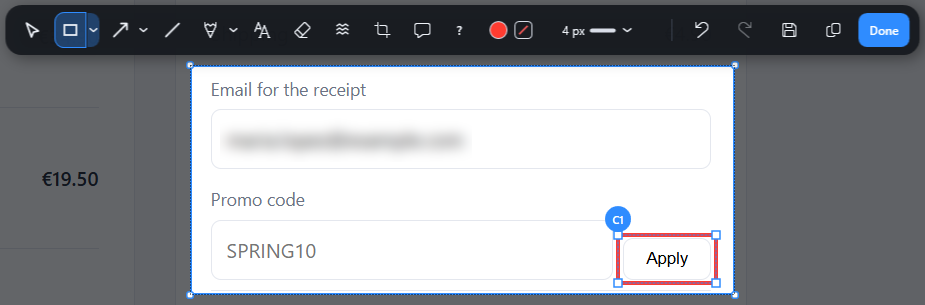
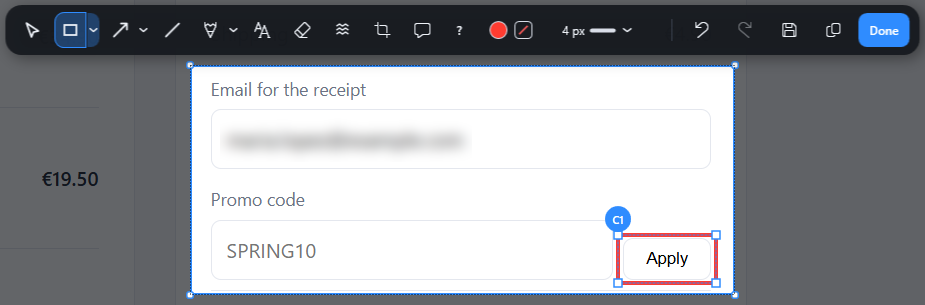
Ctrl+Alt+S, the default capture key. You can set Print Screen or another key under Settings → Hotkeys → Take a screenshot. The screen freezes and shows Select an area · Esc cancels. Drag a frame around the part of the page you need. - Draw a box around the element you want changed. The Region tool is already active, and a note field opens next to the box. Type what to fix and press
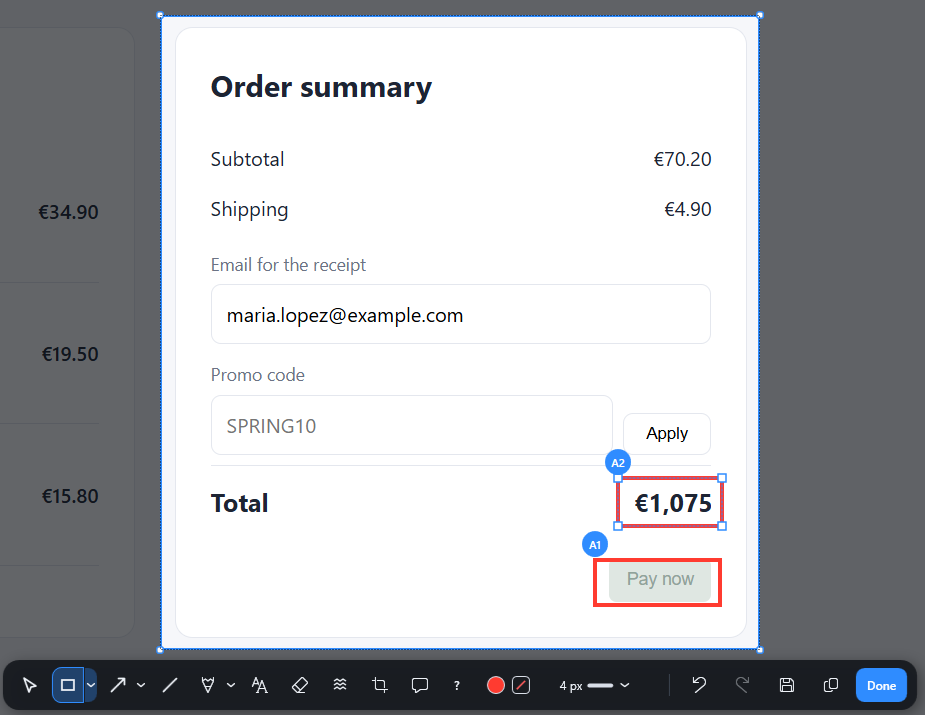
Enter. Every box you write a note for gets a label, A1 for the first and A2 for the next. Boxes without a note get no number. - Press Done, or
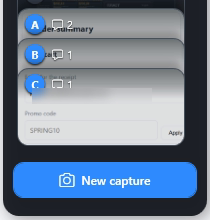
Ctrl+Cwhile the cursor is outside the note field. The capture joins the Capture strip on the right edge of the screen as capture A. - Take the next screenshot the same way. It joins the strip as capture B with its own notes (B1, B2). The strip holds up to 26 captures. After 20, Snapik warns that chats usually take up to 20 images at a time.
- Click into the chat input and press
Ctrl+V. In a terminal running Claude Code, pressAlt+Vinstead. Snapik pastes the images one at a time, then the notes. Wait until the last one lands. Snapik does not pressEnter, so you can still add a sentence before you send.
The text part of the paste looks like this:
Capture A.
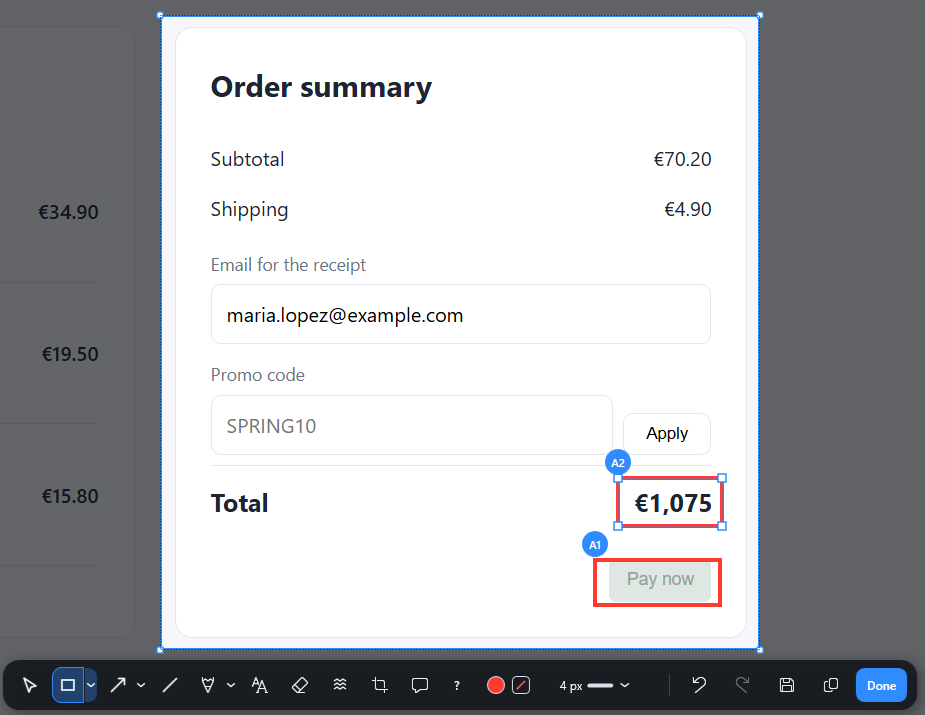
A1: Pay button looks disabled. Make it solid green and full width
A2: Total is cut off. Should read 75.10 EUR, check the sum

Capture B.
B1: Quantity buttons are tiny. Make each tap target 40px

Capture C.
C1: Apply does nothing on click. Show an error for a wrong code
After the paste, the pasted captures in the strip dim and get a check mark. Press Ctrl+V in a second app and the same captures and notes go in again. Once you take a new capture, the next paste carries only the captures you have not pasted yet.
In Claude Desktop and Codex Desktop the key is the ordinary Ctrl+V. For Windows terminals the Claude Code docs name Alt+V for pasting images. The setup is in pasting screenshots into Claude Code on Windows.
Snipping Tool vs Snapik for AI prompts
| Task | Snipping Tool | Snapik |
|---|---|---|
| Send three screenshots with a note on each | Each snip goes to the clipboard on its own; you paste them one by one and describe each in words | One Ctrl+V (Alt+V in a Claude Code terminal) pastes all captures, then the notes, labeled A1, A2, B1 to match the boxes on the images |
| Hide private details | Quick redact for email addresses and phone numbers in Text actions (Windows 11) | Blur (B) on any area, or a solid fill on a box |
| Capture key | Win+Shift+S | Ctrl+Alt+S by default; Print Screen or another key in Settings → Hotkeys |
| Hand the screenshot to an AI | Ask Copilot button in Quick markup (Windows Insider builds, per the 2025-09-17 post) | Whichever chat or agent window you paste into |
| Price | Comes with Windows | €19 once, 7-day free trial |
Sources for the Snipping Tool column, both checked 2026-11-08: the Microsoft Support page and the Windows Insider Blog post of 2025-09-17.
Is Snapik free like Snipping Tool?
No. Snapik costs €19 once, VAT included, with no subscription. The 7-day trial has every feature and asks for no card and no account. On Windows the trial starts the first time Snapik goes online and then works offline. One license covers two computers (Windows or Mac in any mix). Updates are free, and you can ask for a refund within 14 days without giving a reason.
Snapik is worth €19 when a single bug report needs several screenshots and a note on each, because that is the message you would otherwise type out by hand. If you were also looking at a paid editor, see Snapik vs Snagit.
Does Snapik work on Windows 11 and Windows 10?
Snapik runs on Windows 10 and 11 (x64). There is no ARM build. The installer needs no admin rights. It is not code-signed, so SmartScreen shows a warning, and you click More info and then Run anyway. The same license also works on macOS 14 Sonoma or newer, where the default capture key is Cmd+Option+S.
Your screenshots stay on your computer
Snapik never uploads your captures or notes. They stay on your machine until you paste them yourself, and there is no API key to set up. The app goes online only for the license and trial checks, for updates and for anonymous usage events, and you can turn the usage events off in Settings.
Before you paste a screen that shows an email address or a token, drag the Blur tool over it.
How this article was made: written with AI assistance, checked by the Snapik team.