
How to give Claude Code several screenshots at once
Short answer. Claude Code takes several screenshots in one prompt. Paste each one (Ctrl+V on macOS and Linux, Alt+V on Windows and WSL) or drag the files in, and each becomes a chip like [Image #1]. Write your request around the chips so Claude knows which note belongs to which picture. Large images are downscaled, and a request with more than 20 images gets a stricter size limit.
The chips are numbered in the order you add them. The Claude Code docs describe the chip as a way to reference each image positionally, so with several Claude Code screenshots in one prompt you can write "in [Image #2]" instead of describing the picture.
Can Claude Code read several screenshots at once?
Yes. The common workflows page says you can work with multiple images in a conversation, and each image you add in the terminal gets its own [Image #N] chip (interactive mode).
Older versions had bugs here. The changelog lists a fix in 2.1.139 for pasting or dropping multiple images inserting only the last one, and a fix in 2.1.172 for an error with several images in one conversation. If only one chip shows up after a multi-file drop, update Claude Code first.

Three ways to add screenshots
| Method | Where | How many per action |
|---|---|---|
Paste from the clipboard with Ctrl+V (Cmd+V in iTerm2, Alt+V on Windows and WSL) | Terminal | One image per press, repeat for the next |
Drag files onto the prompt (in the desktop app, also the + button) | Terminal, desktop app | Several files per drop (2.1.139 fixed drops that kept only the last image) |
Type the file paths or @-mention the files | Terminal | Several in one message |
Pasting suits fresh captures. Copy the screenshot, press the paste key in the prompt and type a line about it. Then capture and paste the next one, so each note sits right after its chip.
Dropping works for screenshots already saved as files. Select them in Explorer or Finder and drag them onto the prompt together.
Paths are the fallback when the clipboard fails. The docs note that you can reference multiple files in a single message, so @shots/login.png @shots/cart.png in one prompt is fine.
How to tell Claude which note goes with which screenshot
Write the request around the chip numbers instead of describing the pictures again. Keep one note per screenshot, in chip order:
[Image #1] Login page. The "Sign in" button sits under the fold on a 1366x768 screen. Move it above the form footer.
[Image #2] Cart. The total and the item count overlap at 375 px wide.
[Image #3] Settings. This is how it should look after the fix, use it as the reference.
With more pictures, two habits help. Crop each screenshot to the part you mean, so the note does not have to say where to look. And when one screenshot has several problems, draw a number next to each spot and refer to it in the note ("In [Image #1], mark 2 is the wrong font").
For a single screenshot, a chip and one sentence are enough. With two or more pictures, use the chip numbers. Typing a note after every paste works, but it is the slow part of the loop.
How many screenshots, and how big
Claude Code downscales pasted images larger than 2000 px (changelog, 2.1.126). Under it, the Claude vision docs set a maximum of 8000 x 8000 px per image, and a stricter per-image dimension limit applies once a single request carries more than 20 images.
A full 4K capture, 3840 px wide, comes out at about half its width after downscaling, and small interface text shrinks with it. Crop to the region you mean and the small text survives.
Should Claude take the screenshots itself?
For a web app running on localhost, often yes. A browser automation tool such as Playwright lets Claude open the page and capture it to check its own fix, with no manual pasting.
Manual screenshots are still the way when Claude cannot open the thing itself. Think of a native desktop app or a third-party service you are logged into. The same goes for a design mockup and for remarks about taste ("this panel looks cramped").
On Windows, why a paste fails
The docs name Alt+V as the image paste key on Windows, because a terminal can take Ctrl+V for itself and paste text. On 2026-11-08, with Windows 11 25H2, Windows Terminal 1.24.12741.0 and Claude Code 2.1.284, a capture made with Win+Shift+S went in as an [Image #N] chip with Alt+V and with Ctrl+V as well. If Ctrl+V gives you only text, switch to Alt+V. A reported issue (#78395) describes Alt+V failing once after the terminal has been idle, with an immediate second press working. The Windows paste guide covers the keys and WSL, plus the fixes when nothing arrives.
Pasting several screenshots with their notes in one go
Snapik is a Windows and macOS screenshot app that captures several screens and pastes them as one prompt. You write a note next to each mark, and Snapik puts the images and the notes with matching labels on the clipboard. On Windows:
- Press
Ctrl+Alt+S(the default; you can assign another key, Print Screen included, in Settings → Hotkeys). The screen freezes. Drag around the area you want. - The Region tool is already active. Draw a frame around the element. A note field opens next to it. Type the note and press
Enter. The mark gets the label A1. The letter is the capture, and the number is the mark on it. - Add more frames on the same screen if you need them (A2, A3), or an arrow (
A) or blur (B) where a spot needs it. Click Done, or pressCtrl+Coutside the note field. The capture lands in the strip at the screen edge as card A. - Repeat for the next screens. They become B and C, with marks B1, C1 and so on.
- Click into the Claude Code prompt in Windows Terminal and press
Alt+V. Snapik intercepts the key and pastes the images one by one, then the text of the notes. - Read the prompt and press
Enteryourself. Snapik never sends the message.
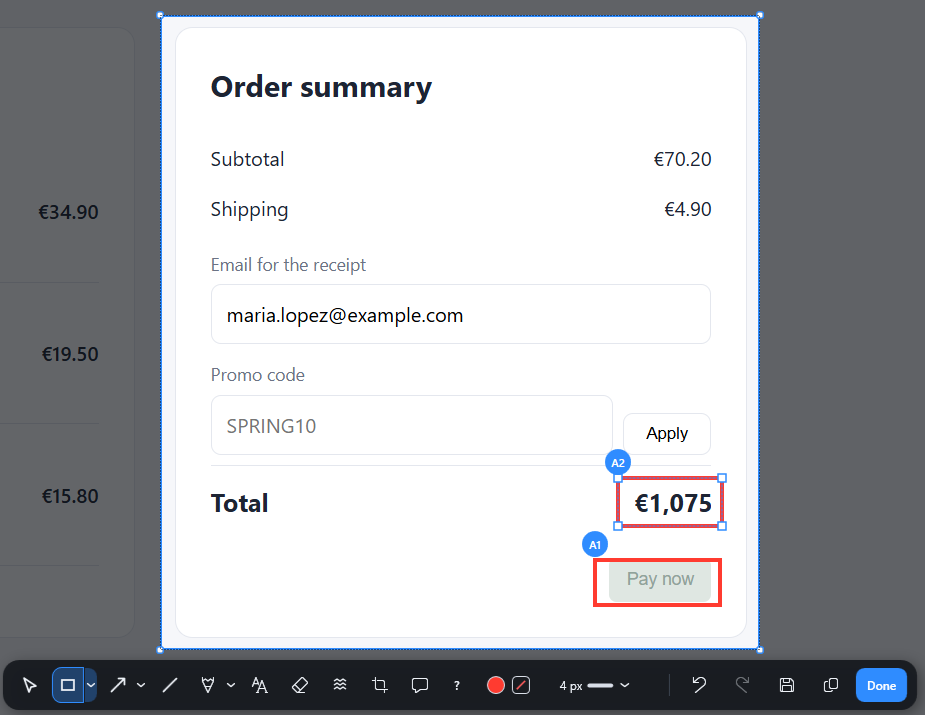
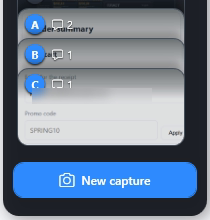
The text part of the paste looks like this:
Capture A.
A1: Pay button looks disabled. Make it solid green and full width
A2: Total is cut off. Should read 75.10 EUR, check the sum

Capture B.
B1: Quantity buttons are tiny. Make each tap target 40px

Capture C.
C1: Apply does nothing on click. Show an error for a wrong code
The same A1 label is drawn next to the mark on the picture, so the note and the spot on the screenshot carry one name.
After the paste, the cards in the strip dim and get a check mark, so the next paste carries only new captures. The package also stays on the clipboard if you want to paste it into a second app.
In the Claude desktop app the paste key is Ctrl+V. On macOS the capture key is Cmd+Option+S, and in a terminal with Claude Code you paste with Ctrl+V.
The strip holds up to 26 captures and warns after 20, and a request with more than 20 images gets a stricter size limit anyway. Snapik does not take screenshots for Claude on its own and does not record video. It costs €19 once, with a 7-day trial that needs no card or account, on Windows 10 and 11 or macOS 14 and later. Download Snapik.
How this article was made: written with AI assistance, checked by the Snapik team.