How to paste screenshots into Claude Code on Windows and WSL
Short answer. On Windows and in WSL, copy a screenshot with Win+Shift+S and press Alt+V in the Claude Code prompt. An [Image #1] chip appears in the prompt. Ctrl+V attached the image too in a test with Windows Terminal 1.24, but Alt+V is the key the docs name for Windows, and the one to use when Ctrl+V pastes nothing. If Alt+V says "No image found in clipboard" or hangs, save the screenshot as a PNG and drag the file in or type its path. In the Claude desktop app, attach with the + button or drag and drop.
Tested on Claude Code 2.1.284 in Windows Terminal 1.24 on Windows 11, 8 November 2026. Anything older than 2.1.157 needs claude update first, because most Claude Code paste image fixes for Windows and WSL landed by that release. The WSL and drag-and-drop parts below follow the docs and the changelog and were not part of that test.
Which key pastes an image in Claude Code on Windows?
Claude Code binds image paste to Alt+V on Windows and WSL, and to Ctrl+V on macOS and Linux.
| Where Claude Code runs | Key that pastes an image | Note |
|---|---|---|
| Windows Terminal (PowerShell or Command Prompt) | Alt+V | Ctrl+V also attached the image in Windows Terminal 1.24 with Claude Code 2.1.284 |
| WSL (Ubuntu tab in Windows Terminal) | Alt+V or Ctrl+V | Both are bound in WSL. Use Alt+V if the terminal takes Ctrl+V |
| VS Code integrated terminal on Windows | Alt+V | Same Windows binding as above |
| Claude desktop app | + button, or drag and drop | Attaches images, PDFs and other files to the prompt |
The steps in Windows Terminal:
- Run
claude --version. If it is older than 2.1.157, runclaude update. - Press Win+Shift+S and select the part of the screen you want. Windows copies the screenshot to the clipboard.
- Click into the Claude Code prompt and press Alt+V.
- Check that an
[Image #N]chip appears in the prompt, then type your question after it and press Enter.

Each paste adds its own chip, numbered in paste order.
Why Ctrl+V sometimes pastes nothing
In the test above, Ctrl+V worked as well. With the same screenshot in the clipboard, it added an image chip to the Claude Code prompt in Windows Terminal 1.24.

That does not hold everywhere. A terminal can handle Ctrl+V itself and paste only the text from the clipboard, so Claude Code never sees the key press. The docs plan for that in WSL ("use Alt+V if your terminal intercepts Ctrl+V"). Issue #68021 describes Windows Terminal taking Ctrl+V this way, and the workaround posted there was an AutoHotkey remap. A separate GitHub issue from February 2026, "[VS Code] Cannot paste screenshot images with Ctrl+V", reports the same in the VS Code terminal.
If Ctrl+V pastes nothing in your setup, leave it alone. A remap in the terminal or in AutoHotkey is one more thing to set up on every machine, and Ctrl+V still has to paste text everywhere else. Alt+V is the key Claude Code documents for Windows, and it costs you one new habit.
How to paste images into Claude Code in WSL
Update first. Older WSL threads say Alt+V did nothing in WSL2 under Windows Terminal, and they were right at the time. Two releases changed that.
- 2.1.136 added a PowerShell fallback, so Claude Code in WSL2 can read an image from the Windows clipboard.
- 2.1.157 made Alt+V work in WSL, along with Windows 11 screenshots and dragging images in from File Explorer.
On a current version the steps match Windows. Open the Ubuntu tab, start claude, press Win+Shift+S, then Alt+V in the prompt. Ctrl+V is bound in WSL too. If your terminal intercepts it, use Alt+V.
Under WSLg, issue #89223 reports wl-paste handing the image over as BMP. If Alt+V fails there, use the file route below. Community bridges such as claude-code-image-paste-wsl were written before the 2.1.136 and 2.1.157 fixes, so try the built-in Alt+V on a current version before you install one.
"No image found in clipboard" and Alt+V that hangs
Both failures are open issues.
"No image found in clipboard" after Win+Shift+S was fixed once in 2.1.141. It came back for some people. Issue #90657, reported on 2.1.251 and still open, shows Alt+V failing on a fresh screenshot that Word pastes without trouble. The workaround in that thread is to save the screenshot as a PNG and give Claude Code the file path.
Slow pastes have a cause on record. Each Alt+V starts three PowerShell processes (issue #100899). With antivirus running, one commenter saw 13 to 15 seconds. Issue #108217, filed against 2.1.319, describes "Pasting…" on screen for more than 10 seconds while the terminal stops responding.
What to try, in this order:
- Run
claude updateand paste again. - Press Alt+V a second time. Issue #78395 reports a paste that fails once after the terminal sits idle and works on the immediate second press.
- If the second press fails or hangs, stop retrying and use the file route below.
Drag the file in or type its path
A file on disk skips the clipboard entirely. Claude Code accepts an image three ways (paste, drag and drop, or a path in the prompt), and the last two do not depend on Alt+V.
- Take the screenshot with Win+Shift+S.
- Save it as a PNG. Click the Snipping Tool notification and press Ctrl+S.
- Drag the PNG from File Explorer into the terminal window, or type the full path to the file in your prompt.
In WSL, dragging images from File Explorer works since 2.1.157. If Snipping Tool itself gets in the way, see Snipping Tool alternatives.
Pasting several screenshots at once
Claude Code takes more than one image per message, each with its own [Image #N] chip. Version 2.1.139 fixed a bug where pasting or dropping several images kept only the last one, so check your version if only one chip shows up.
The tedious part is the notes. With five chips in the prompt you still type "in image 2 the button is cut off, in image 4 the label is wrong" and hope the numbers line up. Snapik numbers the notes for you (Windows 10 and 11).
- Press Ctrl+Alt+S (the default capture key, Print Screen or another key can be set in Settings → Hotkeys) and select an area.
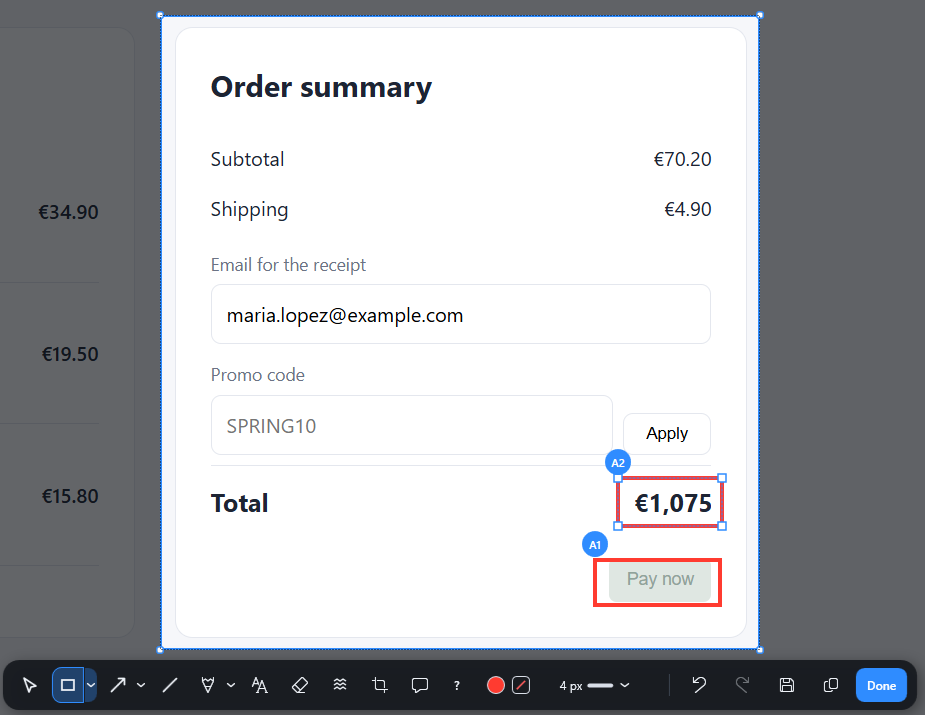
- Draw a box around the problem. A note field opens next to it. Type the note and press Enter. The box gets a label such as A1, and the same label goes into the text.
- Click Done and capture the next screen. It becomes B, with notes B1, B2 and so on.
- Switch to Windows Terminal and press Alt+V in the Claude Code prompt. Snapik catches the key press, pastes each capture as a separate image, then pastes the notes as text in lines like
A1: Pay button looks disabled. Make it solid green and full width.
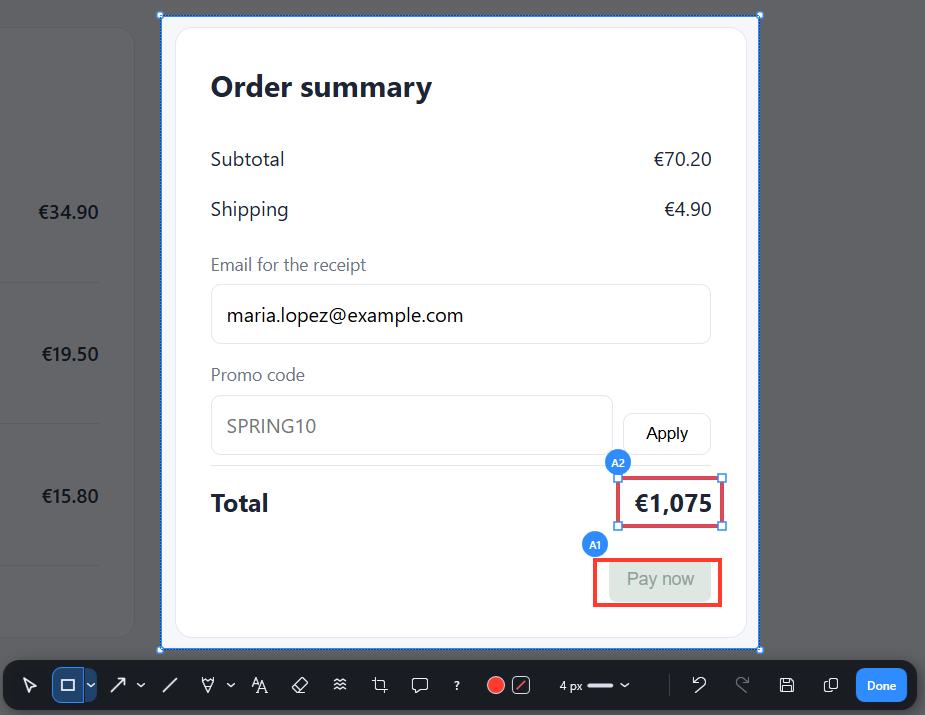
Snapik never presses Enter, so you can edit the prompt before sending it. It costs €19 once, with a 7-day trial that needs no card. It does not repair Claude Code's own Alt+V, so the steps above for a failing paste still apply. The Claude Code screenshots guide goes further into multi-screenshot prompts, and the installer is on the download page.
How this article was made: written with AI assistance, checked by the Snapik team.