
How to give an AI coding agent a screenshot
Short answer. Paste it into the agent's prompt. In Claude Code that is Alt+V in a Windows terminal, Ctrl+V in a macOS terminal, and Ctrl+V, the + button or drag and drop in the Claude desktop app. Each image becomes a chip such as [Image #1], and your note can point at it by number. When the clipboard paste fails, save the screenshot as a PNG and drag the file in or type its path.
On 8 November 2026, with Windows 11 25H2, Windows Terminal 1.24 and Claude Code 2.1.284, a capture made with Win+Shift+S went in with Alt+V and with Ctrl+V. The other rows come from the Claude Code docs, its changelog and Snapik's release checks, and the notes column says which.
Paste keys by agent
| Agent | Attach with | Notes |
|---|---|---|
| Claude Code in a Windows terminal | Alt+V | Tested 8 Nov 2026, Ctrl+V worked too. Docs name Alt+V, use it if Ctrl+V pastes only text |
| Claude Code in WSL | Alt+V or Ctrl+V | Changelog, works from 2.1.157. Run claude update on anything older |
| Claude Code in a macOS terminal | Ctrl+V (Cmd+V in iTerm2) | Docs |
| Claude desktop app | Ctrl+V on Windows, the + button, or drag and drop | Docs for + and drag and drop, Snapik release check for Ctrl+V. Takes PDFs too |
| Codex desktop app on Windows | Ctrl+V | Snapik release check. Checked with Codex 26.917 |
| Claude Code, any terminal | Drag a saved PNG onto the prompt, or type its path | Docs. Use when clipboard paste fails |
Cursor is not in the table because none of these keys were checked there.

When Claude Code replies "No image found in clipboard", hangs on "Pasting…", or WSL ignores it, the guide to pasting into Claude Code on Windows and WSL goes through the fixes in order, starting with claude update and ending with the file route.
Sending several screenshots with notes
Claude Code accepts several images in one prompt. Chips are numbered in paste order, so a note can name one:
[Image #1] Login page. The "Sign in" button is below the fold.
[Image #2] Cart. The total and the item count overlap at 375 px.
Claude Code downscales pasted images wider than 2000 px, which shrinks small interface text in a full 4K capture, so crop to the part you mean. If only one chip appears after dropping several files, your Claude Code is older than 2.1.139 and needs an update. Giving Claude Code several screenshots at once covers the wording of notes and when Claude should take the screenshots itself.
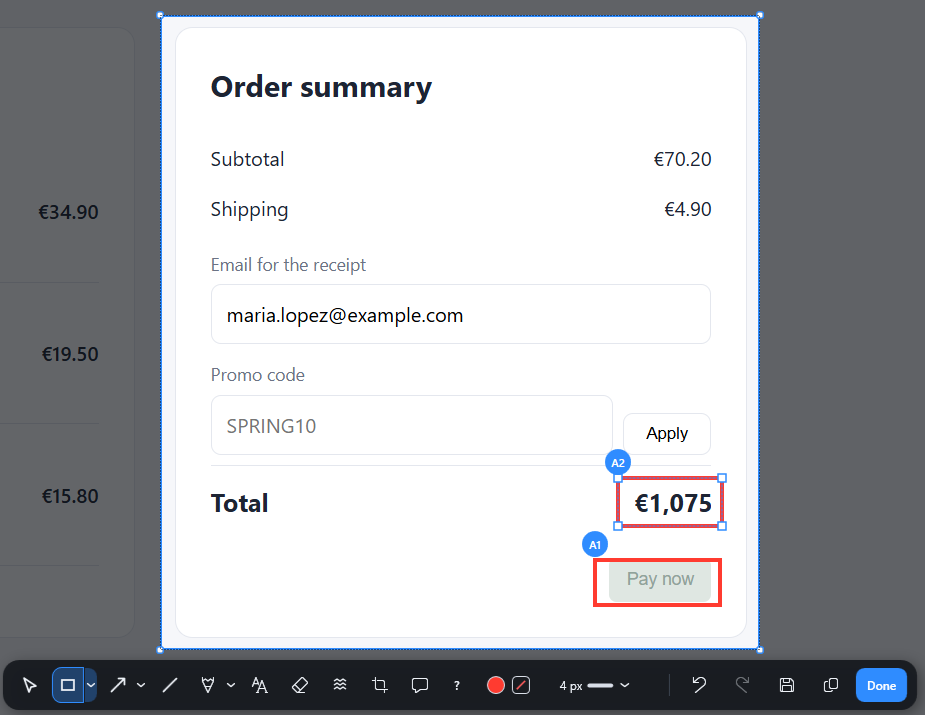
For one screenshot, Win+Shift+S and Alt+V are enough. With four or five, typing which note belongs to which chip becomes the slow part. Snapik removes that step. Press Ctrl+Alt+S (Cmd+Option+S on a Mac), select the area, draw a box and type a note. Snapik draws a label like A1 on the image. One press of the usual paste key (Alt+V in a Windows terminal running Claude Code) puts every capture in as a separate image, then the notes as text in lines like A1: Pay button looks disabled. Make it solid green and full width. The text names each capture by its letter. Snapik never presses Enter, so you read the prompt before sending. It runs on Windows 10 and 11 and macOS 14 or later, and costs €19 once after a 7-day trial.
If you already use Snipping Tool or Snagit
Snipping Tool sends each snip to the clipboard on its own, so three screenshots mean three pastes, then the notes typed by hand. The Snipping Tool comparison shows the same three screenshots going in as one paste.
Snagit is sold as a yearly subscription, listed at €39.56 a year for Snagit Individual in TechSmith's store on 8 November 2026. The page on replacing Snagit with a one-time purchase puts that next to Snapik's one-time price.
How this article was made: written with AI assistance, checked by the Snapik team.